Dependency Management in Orchestra Web Designer
Description
In Orchestra Web Designer, users can manage project settings and scenarios within the Build Management panel.
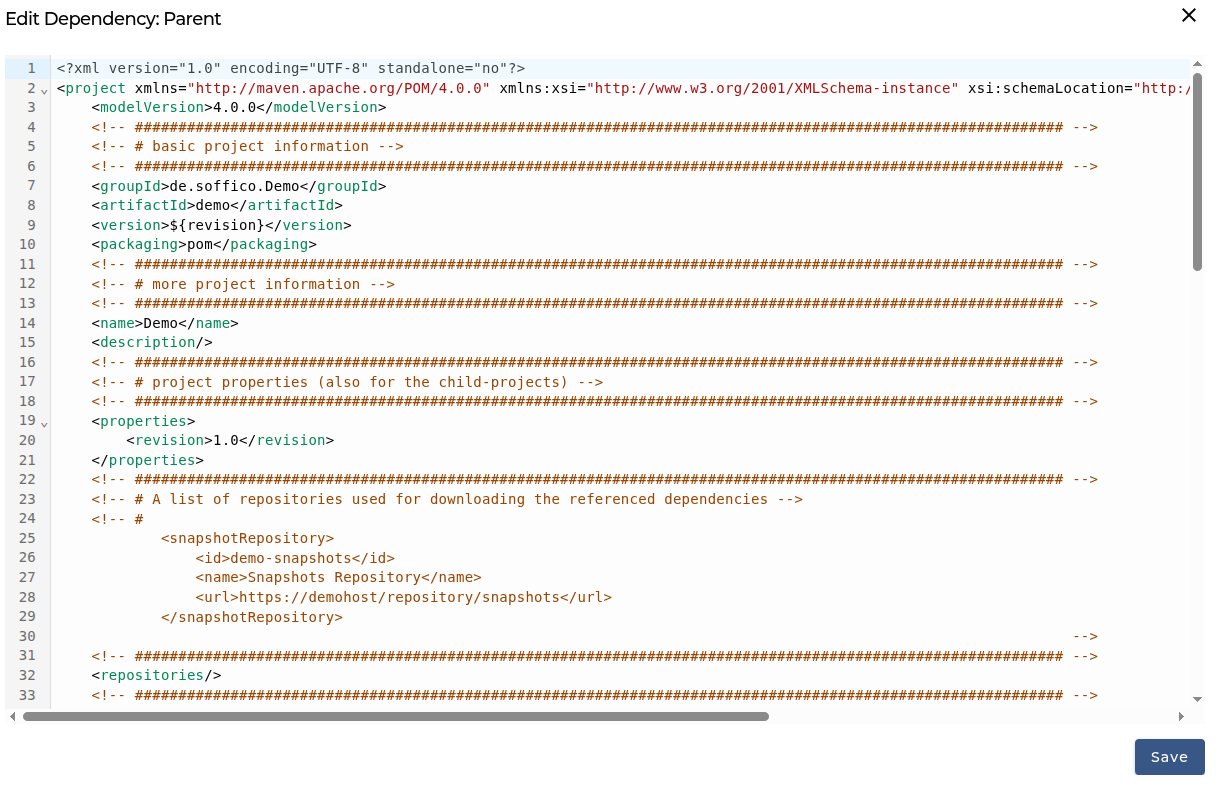
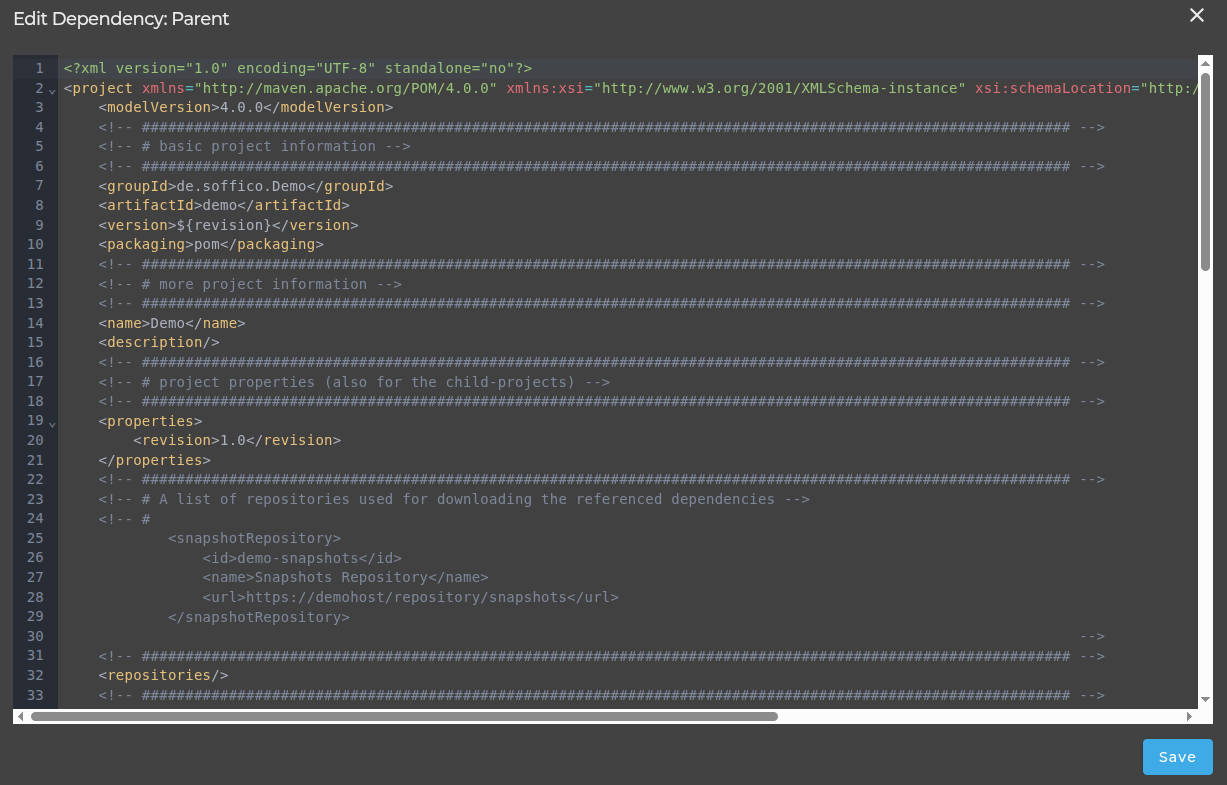
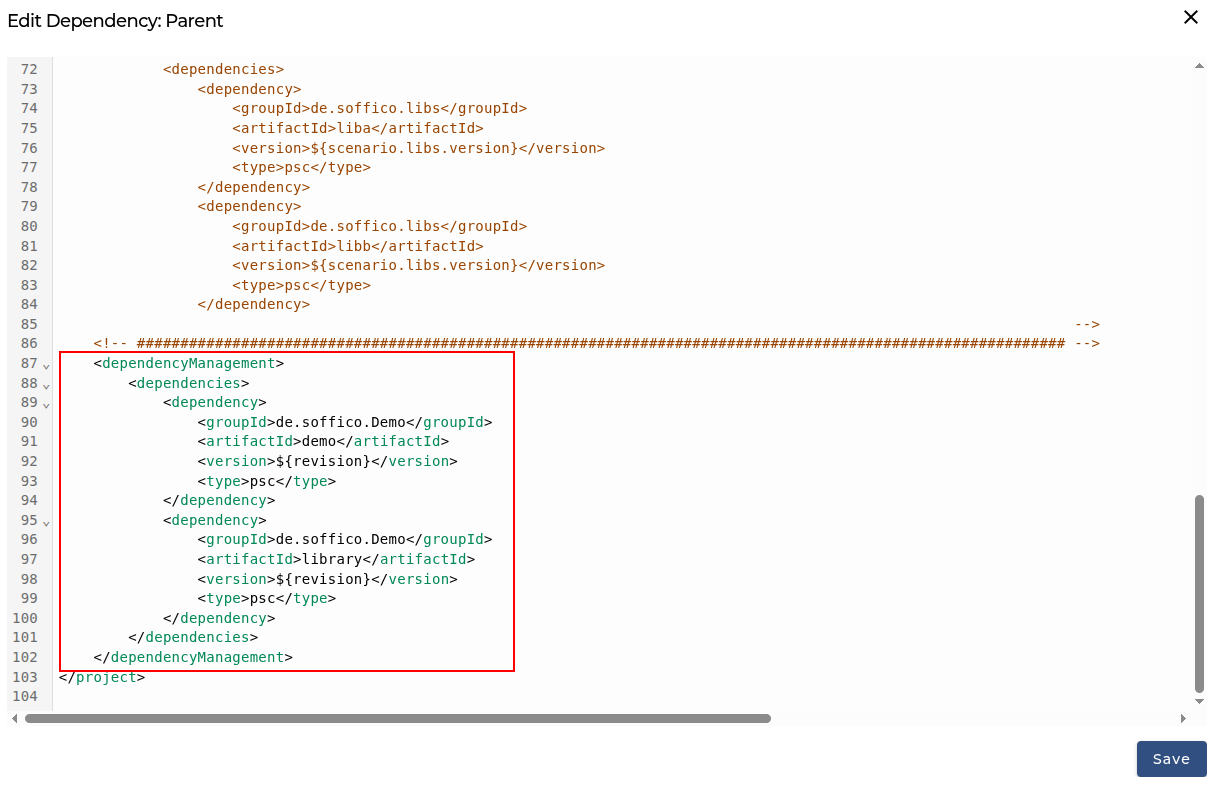
Project Configuration Example (Parent POM)
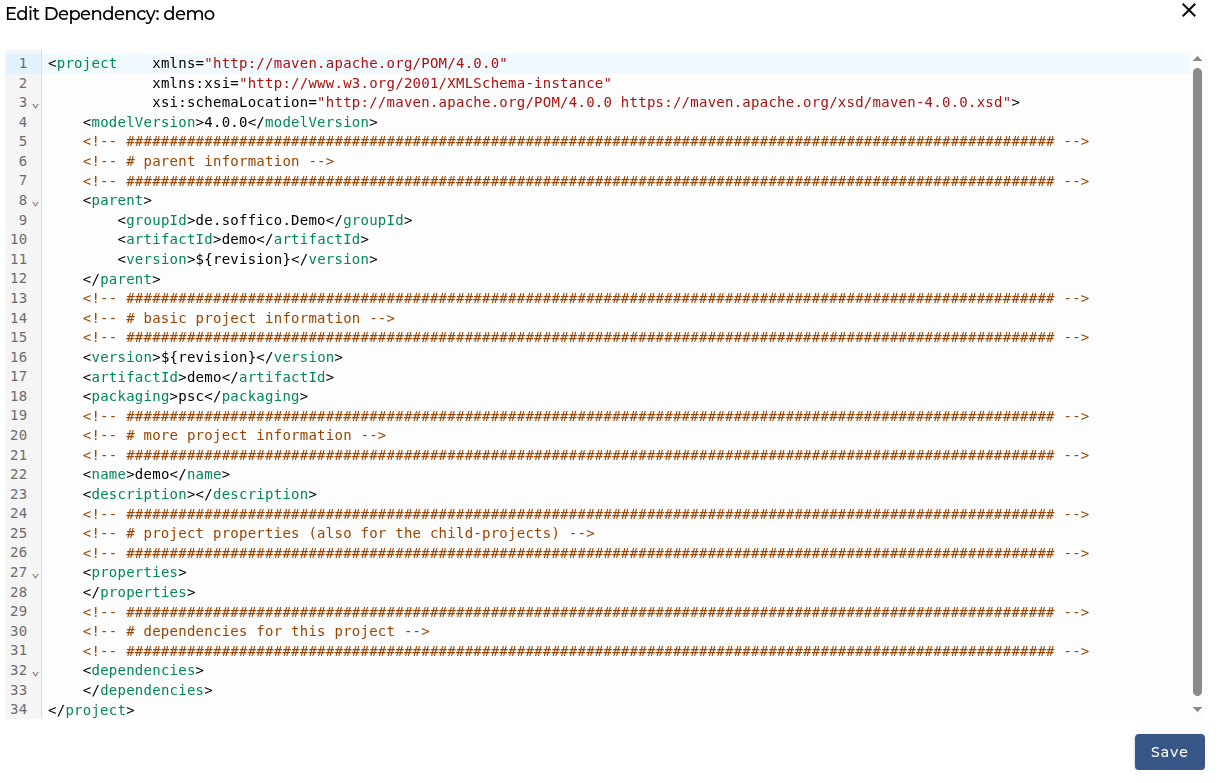
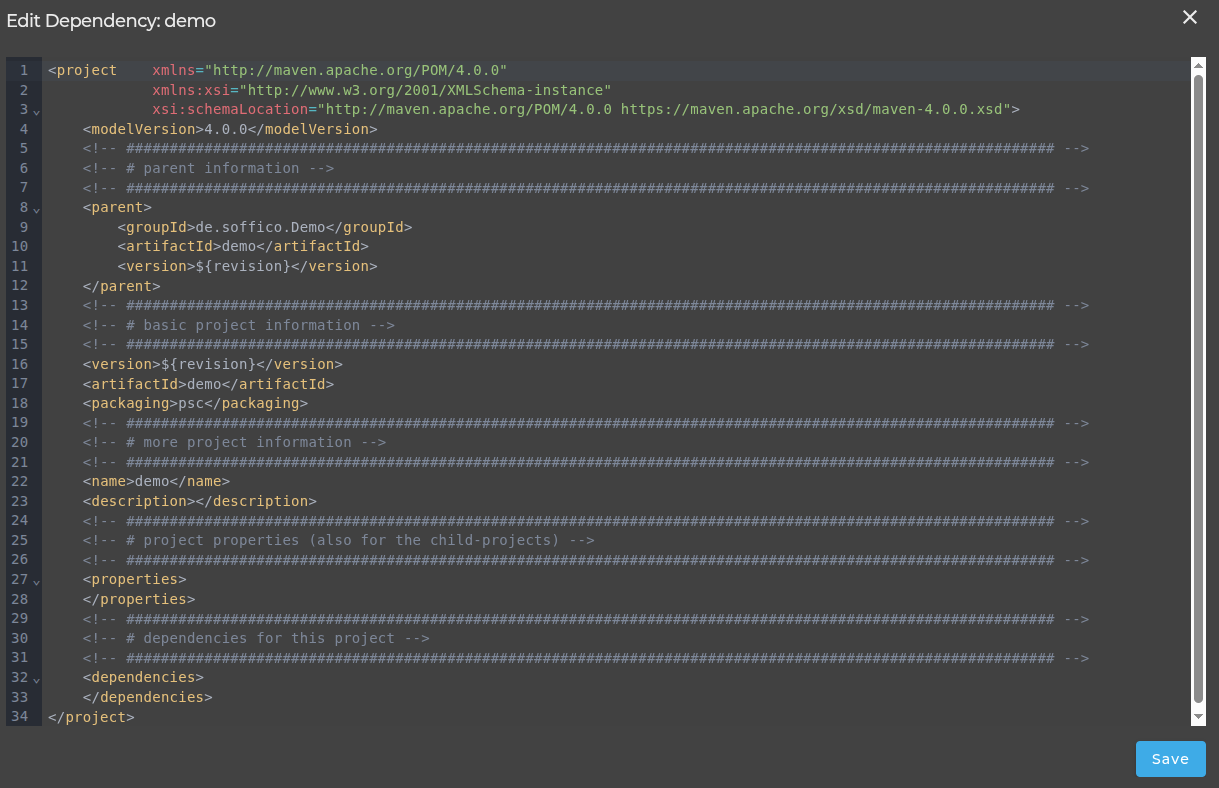
Scenario Configuration Example
Importing Scenario Elements from Other Scenarios
To import a scenario element from another scenario, you need to define a dependency in the scenario POM.xml file.
Add the required dependency within the <dependencies> section of your scenario POM file.
The following example shows a fragment of such a POM file. In this case, two dependencies are defined:
- One for an artifact named library-a
- One for an artifact named library-b
Both dependencies belong to the same project (same groupId).
Since the child POM inherits the version from the parent POM, the version information is omitted here.
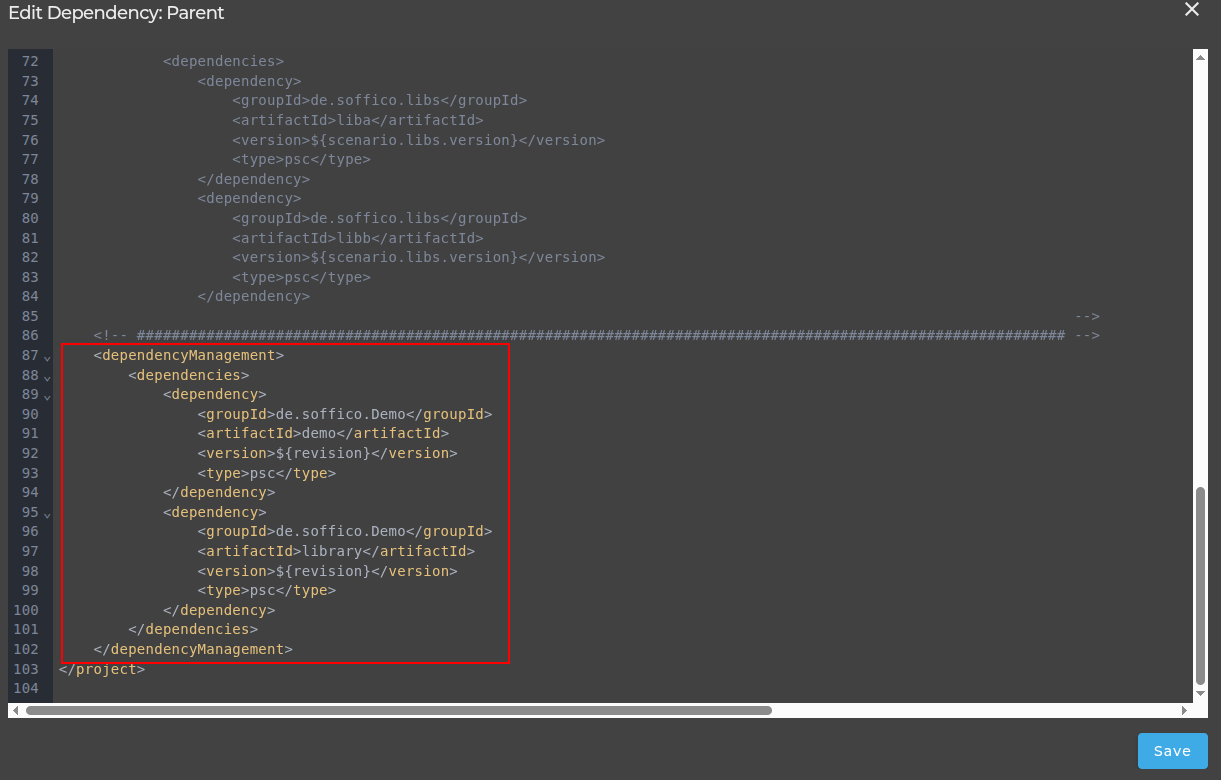
Configure Scenario Dependency
Updating Dependencies
Whenever a dependency is modified, all dependencies used in a scenario must be re-imported.
To simplify this process, select Update and execute the action.
All imported scenario elements will then be refreshed based on the dependencies defined in the POM.xml file.